Windows 11 still has no single switch to disable every AI integration. A test on Windows 11 Home 26H2, build 26300, found that uninstalling the Copilot app addresses only one part of Microsoft’s expanding AI layer, which also includes local text and image generation, cloud-based writing tools, app actions and Copilot+ PC features.
The Settings app includes a Text and image generation page where users can revoke an app’s access to local AI models or disable that access more broadly. That setting does not apply to cloud-processed features. Notepad’s rewrite and summarization tools, for example, run through Microsoft’s servers and have their own controls. Windows also separates an app’s AI permission status from its recent AI activity.
Copilot+ PCs add separate controls for Recall and Click to Do. Recall saves snapshots only after the person using the device has explicitly opted in, and it can be removed as a Windows component. Click to Do is enabled by default; it can be switched off but cannot be uninstalled. Feature availability can also vary by region, with Microsoft documenting restrictions in the European Economic Area.
Where Windows 11’s AI controls are located
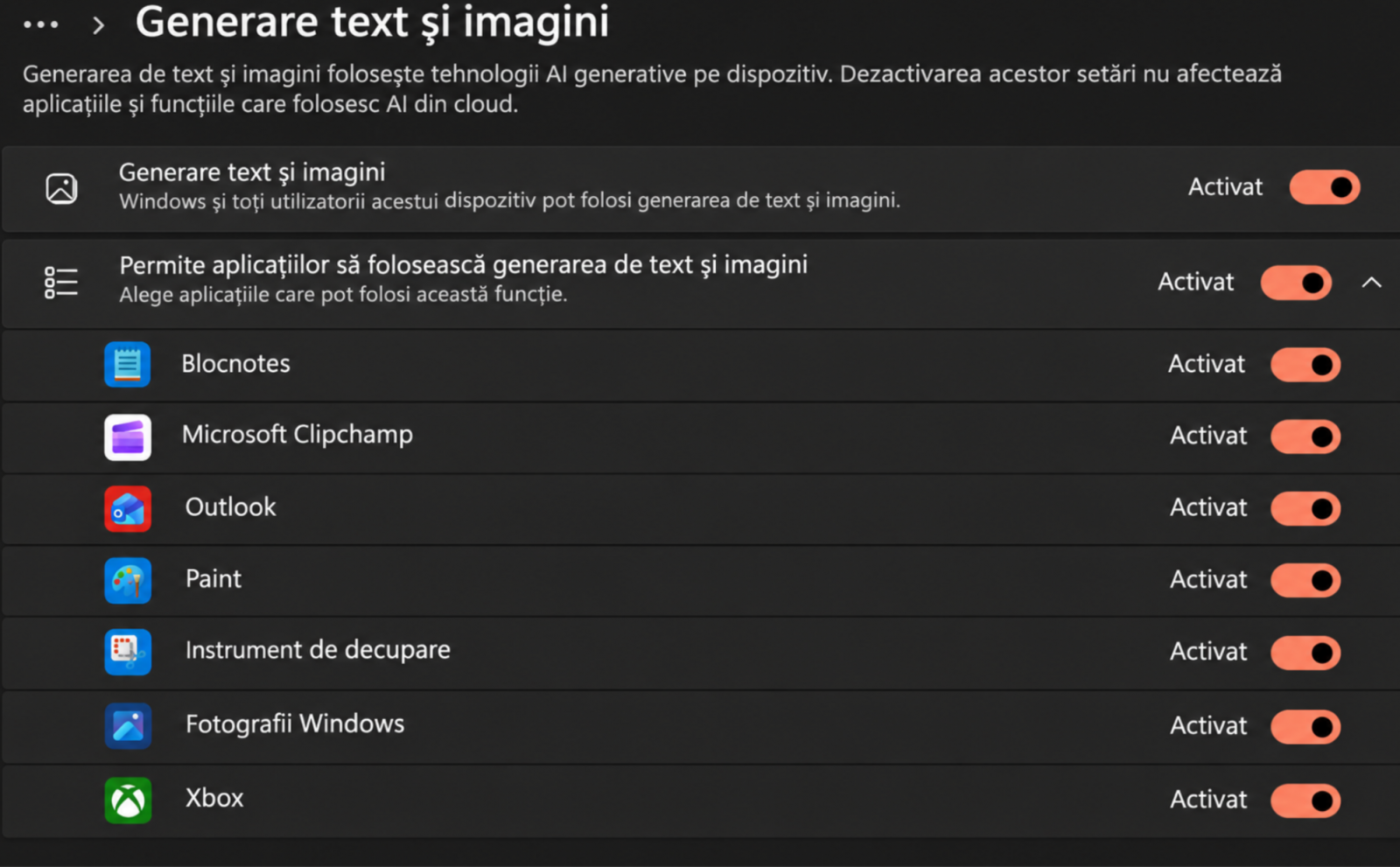
- Local text and image generation: Open Settings, then Privacy & security and Text and image generation. Disable overall access or permissions for individual apps. Cloud AI services are controlled elsewhere.
- Notepad writing tools: In Notepad, open Settings from the gear icon, then Advanced features and Writing tools, and turn the feature off where that menu is available.
- Suggested app actions: Go to Settings, Apps and Actions to disable integrations offered by apps such as Paint and Photos.
- Copilot app: Go to Settings, Apps, Installed apps, Copilot, then select Uninstall. Microsoft 365 Copilot is a separate product and must be managed independently if installed.
- Recall on Copilot+ PCs: Search for “Turn Windows features on or off,” clear the Recall option and follow the on-screen instructions to remove it.
- Click to Do on Copilot+ PCs: Open Settings, Privacy & security and Click to Do, then turn it off. The Windows key plus click and Windows key plus Q shortcuts will no longer activate it.
Older Windows management guidance is not necessarily effective for the newer Copilot experience. Microsoft has marked the TurnOffWindowsCopilot policy as deprecated and says it does not control the current Copilot implementation. The distinction between the standalone Copilot app and Microsoft 365 Copilot further means similarly named entries in the Start menu may lead to different products and settings.